Showing posts with label setup packages. Show all posts

February 12, 2023

New server setup package with built-in SQL Server 2019 Express is available

 New installation package for Bopup Communication Server is available for download. We built a new setup file that now includes Microsoft SQL Server 2019 Express which can be installed as a built-in database server. 


This package will be useful for companies that plan to move their existing instances or install the messaging server onto latest Microsoft Windows OS such as Windows 10, 11 and Windows Server 2016, 2019 and 2022.

The new setup contains 64-bit version of the SQL Server software unlike other setup files ship with 32-bit versions of SQL Server 2005, 2008 and 2014. That caused an issue with installing Bopup Communication Server on recent releases of Windows operating system.

The new setup file is available for download in Download Center within other packages. It can be also downloaded using s direct link https://www.bopup.com/files/bcserverwsql2019.exe


March 30, 2021

Configure instant messaging between computers not users

We released new versions of the instant messaging server and client messenger software that add an ability to exchange messages based on computer names instead of users. This allows to use Bopup IM software in those local networks where locations of workstations are much important than users that are working there.

Configure the communication server

New version 5.8.6 of Bopup Communication Server extends built-in Active Directory Import Wizard tool which now allows to search and import computers from LDAP catalog instead of user accounts.

In order to enable this and switch the wizard to the new mode a new hidden setting called "ImportComputersFromAD" must be created in the system registry under application key. Create that numeric setting in HKEY_LOCAL_MACHINE\Software\B Labs\Bopup Communication Server key (or in HKEY_LOCAL_MACHINE\Software\Wow6432Node\B Labs\Bopup Communication Server on 64-bit versions of Windows) and set it's value to "1".

Then run the Active Directory Import Wizard to add computer names available in domain network.

Configure the IM clients

Download recent versions of Bopup Messenger and Bopup Observer. In order to automate setting the local computer name as a default account name used to connect to the IM server in the messengers we added new option called "UseComputerName" in the [HIDDEN] section of the setup.ini configuration file. Set this parameter to "1" to enable the IM client to use local computer name. Then place the setup.ini file into the same folder within MSI setup file of the instant messenger and then install/upgrade the application.

It is possible to create and edit the setup.ini file using IM Client Configuration Tool which provides GUI for easy and handy maangement of client settings. It can be downloaded as a stand-alone app too from https://www.bopup.com/downloads/

Please note that using computer names as account names does not support domain authentication since computers in the Active Directory are different from user account objects. So in this case the Simple Authentication must be enabled on the IM server.

Download the latest versions of Bopup Communication Server, Bopup Messenger and Bopup Observer software — Managed self-hosted client/server platform for secure text messaging and document exchange



February 25, 2020

Major update of the instant messaging server

New version 5.6.0 of Bopup Communication Server has been released.


In this release we fully rebuilt app's files in order to remove the dependency from libpq.dll module which is related to support of PostgreSQL/Postgres Pro database server. We added such support in version 5.5.0 and noticed that the core service started to crash suddenly with a fault address located in libpq.dll So we decided to build a separate setup package with support of Postgres servers and do not link program files with this third-party library if regular Microsoft SQL Server database family is used.

Removing the dependency of libpq.dll module also reduced sizes of all installation packages because it required Microsoft Visual C++ 2010 redistributable files which we could remove.

Download Bopup Communication Server version 5.6.0 — Enterprise IM server and Active Directory and message archiving support

December 5, 2019

Bopup Communication Server version 5.5.5

There is a minor update of the instant messaging server available. We released new version 5.5.5 of Bopup Communication Server application.


Most important changes added to it's setup packages that now correctly installs Microsoft Visual C++ 2010 Redistributable on 64-bit versions of Windows. The server require that redistributable since it supports Postgres/Postgres Pro database families. So this update is important for new customers.

Download Bopup Communication Server version 5.5.5 — A private instant messaging server running as a self-hosted application for Windows

June 16, 2018

bopup.it domain is moved to it.bopup.com website

We experienced issues with our www.bopup.it website that contains information in Italian language that stopped work few months ago. The problem was in our registrar so we decide to move it to a subdomain at it.bopup.com Now the website is working so our customers from Italy may access it to read informaiton about Bopup IM software and download fully localized setup packages of the messenger apps in Italian language.

Visit it.bopup.com website in Italian language

March 24, 2018

IM server installers have been improved

We updated current installation packages of Bopup Communication Server by keeping the same version number 5.2.4. The updated installers improve installation of Management Console only (administrative mode) when the communication server is planned to be managed remotely.

Since new versions 5.x of the IM server creates and uses 'bcs50' SQL database by default then this could be an issue if the console is installed to manage an instance of the communication server that was previously upgraded from version 4.x or even from version 3.x. Those versions have 'bcs40' and 'bcs30' database names instead of 'bcs50' that made impossible installation of the remote console using setup files for versions 5.x

The updated installers add a new text field on the SQL Login setup dialog that allows to specify a proper database name. It's default value is 'bcs50' that can be changed in cases described above.

Download Bopup Communication Server version 5.2.4 — Private, stand-alone instant messaging server for offices and corporations

March 26, 2017

New major update of Bopup Communication Server released

Our IM server application has been updated and it's version 5.1.0 has been released. This recent update of Bopup Communication Server comes with many new additions and changes, most of useful and important are described below.

What's new in Bopup Communication Server 5.1.0:

Added localization to Russian language
This release of the communication server added Russian translation including interface of the Setup Wizard, Desktop and Program menu shortcuts and the interface of Management Console. The localization also applied the IM Client Configuration Tool. This is the most useful and important update for our Russian customers and users.

Showing data from Messaging History is speed up
Management Console improved the speed of result list update showing data in Message History views. Prior versions could take a lot of time to refresh that lists if a huge number of messages and transfer have been selected. Now it should work faster and show up to 65,535 records instead of previous 10,000.

Management Console checks and registers IM service module if it is missing
Another annoying and common issue that our customers might face with is a sudden missing of Bopup Communication Server service from Services list. This could appear during Windows update or during a upgrade of the communication server software to a new version. Now the Management Console checks that the service exists in the system and registers it if otherwise.

Saving message logs to text files
The new version activates the option to save shown instant messages and file transfers in the Message History to a text file even no data is currently selected. In this case all shown data will be saved into a file. Otherwise only selected messages and transfers will be saved.

Fixed issues with upgrade previous versions
We noticed that sometimes new version 5.x of the IM server could not update an existing version 4.x correctly and interface of the Management Console started showing bugs like some resources missing. That could appear of the communication server was initially installed to a directory that differs from default location at "\Program Files\Bopup Communication Server\" (or "\Program Files (x86)\Bopup Communication Server\" on 64-bit systems) so some newly added resources of version 5.x still copied to default location. The version 5.1.0 fixed this.


June 20, 2014

The IM server improves the install of built-in MS SQL Server 2008

We released new update of the communication server that would be important to our new customers. Version 4.3.6 improves installation of built-in MS SQL Server 2008 R2 Express that is intended for install on latest versions of Windows including 8, 8.1 and 2012. We noticed that some users experienced issues and installation errors of the built-in SQL Server so we took some time to figure out what happened with it and fixed the setup.

Download Bopup Communication Server version 4.3.6

April 6, 2014

Bopup Communication Server fixes issues with creation of user accounts from messenger clients

New version 4.3.3 of the communication server has been published. It is a minor update of the software that only fixes issues with creation of user accounts from instant messaging clients.

It is easy to update existing instance of Bopup Communication Server with keeping all settings, data and history. Just download and launch a new setup package of the server on a computer running the IM server. Even the communication server was installed with built-in SQL server it can be upgraded using a smaller installation file that comes with no SQL server.

Download Bopup Communication Server version 4.3.3

January 15, 2014

Download new setup package of the IM server with built-in MS SQL Server 2008 R2 Express

This is a useful information for new and existing clients about installation of Bopup Communication Server on latest Windows 8 and 2012 releases. We made a new setup package of the server software and integrated Microsoft SQL Server 2008 R2 Express edition that can be installed as a built-in database server. We know that our regular setup for the communication server comes with built-in Microsoft SQL Server 2005 Express for both 32- and 64-bit systems. But here is a trouble with it on Windows 8 and 2012 because that SQL version is not supported by latest operational systems from Microsoft. Since Windows 8 is a mainstream today we decided to be closer to users and released a new installation file.

Yes, the new setup package is much bigger, it's size is above 115Mb while the setup file with built-in SQL Server 2005 is only about 62Mb. Since SQL Server 2005 is not supported by Windows 8/2012 then now regular Setup Wizard now detects and shows a warning dialog page if the SQL server has been chosen for installation on a local PC. That page contains description and link to our Downloads Center that offers a download of a bigger package especially built for Windows 8 and 2012.

December 15, 2013

Interact with a new version of the IM server smoothly!

We released a new version 4.3.0 of Bopup Communication Server which improved the Welcome page of Management Console and added other improvements.


See overall configuration progress of the IM server with helpful tips

It is a known thing that our IM server offers a huge number of functions and provides a lot of functionality. And new users can be in confusion and frustrated on a first start of the console: too many things must be performed like adding user contacts, enabling right authentication, etc. What to do first? And we understand how to important to support new users, allow them to configure the server with ease and smoothness. Thus now Management Console interacts with a user, it helps to move administrator through all required steps in order to get the communication server ready to accept clients and to enable communication for them.

The most important feature is the tooltips above each part of the server shown on the Welcome page, i.e. User Accounts, Messaging Groups, News Messages, File Distribution, Archiving & Logging and IM Client Updates & Branding. Of course users are the primary key to organize the server so the console shows only a single tooltip above User Accounts section on it's first startup if there is no accounts. This will force to create users first instead of other things and features.

Once at least a single user has been created or imported the console unlocks other general tasks and shows tooltips for them. Once a task completed it is marked with a check sign above it instead of the tooltip. Now no matter what task is performed first, Groups, News, File Distribution — it would be moved to the left and placed near User Accounts task. So general blocks on the Welcome page are now built dynamically!

Another great function is a progress bar that indicates an overall process of tasks completion. It has a green color and moves at bottom of the task blocks from 0% to 100%.


The Setup Wizard prevents installation of built-in SQL Server on Windows 20012/8

We also improved a setup package and now the installation wizard of the communication server recognizes latest Windows 2012 and version 8 if a user selects to install built-in SQL Server within the server. Since the IM server is shipped with MS SQL Server 2005 Express edition it is not supported by those versions of Windows. So the setup would bring an information dialog that explains how to avoid this issue and manually set up SQL Server 2008 or 2012, for example.


Added support for Android clients

Did you hear that we are working on Anroid clients in a past few months? Our first mobile messenger is going to a release soon and version 4.3 of Bopup Communication Server now officially supports it. Currently we are on alpha testing phase of Android software.


Download Bopup Communication Server version 4.3.0

October 30, 2013

Tips & Tricks: How to prevent users from uninstallation of IM clients?

Sometimes security policies of a company require to prevent users rights to uninstall instant messenger software from their local PC. Our software already offers an option that prevents users from existing the IM client application. That can be done via "RestrictExitProgram=1" setting in the Setup.ini configuration file and Setup.ini Configuration Tool. Both of them are available for download at www.bopup.com But there is no option to disable uninstallation of the application from Programs and Features panel (Add/Remove Programs (ARP) in earlier Windows versions). But that's possible too.

Since setup packages of Bopup IM client software are provided in MSI files then it is possible to use command line options for msiexec launcher by putting standard Windows Installer properties. In order to disable Remove option in the Control Panel "ARPNOREMOVE=1" (in upper case) must be used. Thus the command line that launches the setup package and installs it with no disabled remove option in ARP should be the following:

msiexec /i bopupmes.msi ARPNOREMOVE=1

Bopup Observer client observer.msi package name must be specified instead of bopupmes.msi

There are so many options, and it is even possible to set IM server name by putting "IMSERVER=" property (in upper-case letters) to set a name/address of Bopup Communication Server. 

Yes, there is a little problem to use the command line options if the IM client applications are deployed/upgraded via Active Directory Group Policies (GPO). So we plan to add a new option to the setup.ini configuration file to support uninstallation through it.

May 31, 2013

New version of the communication server fixes Management Console if it is installed in administration mode

New version 4.1.8 of Bopup Communication Server is available for download at Download Center. This release fixed issues with the Management Console when it manages a remote instance of the IM server, i.e. installed in the Administration mode. It might hang up when some data on the server is changed, for example new setup package of IM clients uploaded, server settings changed or branding image (logo) is selected.

Download the latest version 4.1.8 of Bopup Communication Server

November 28, 2012

New version 4.1.2 of Bopup Communication Server

We released new update of the communication server software, and it's version 4.1.2 is available for download. This latest release comes with minor improvements and changes and this is not a priority update for the software.

Are you still using "old" versions of the IM software?

If you still use old versions of the communication server and messenger clients then it is a good time today to upgrade to the latest versions. Even you have oldest versions like version 3.3 installed you can easily and quickly migrate to the latest software. We have a document that overviews all the steps you need to follow on upgrade, check it out here http://updates.bopup.com/upgrading_to_version_4.0_instruction.html

Summary:
  1. Install new version of the IM server over existing software
  2. Upload new versions of the messengers (MSI packages) on the server through Management Console in order to update the IM clients
  3. Enjoy with functions available in new versions

Download Bopup Communication Server version 4.1.2

June 1, 2012

Italian versions of the client instant messaging software are available

We are proud to inform our Italian users and customers that now Bopup Messenger and Bopup Observer IM clients are available in Italian language too. Localized versions include independent setup packages in Italian like we have for English, French, Spanish, Dutch, German and Russian languages. All setup packages are available in our Download Center at www.bopup.com/downloads/

Download Bopup Messenger version 6.0.6 and Bopup Observer version 5.0.6

May 31, 2012

The Setup Wizard of the communication server fixes issues with installing product on existing MS SQL Server

New update is available for Bopup Communication Server software. Latest version 4.0.13 fixes issues with installing the communication server on existing Microsoft SQL Server software. The main issue was that the Setup Wizard of Bopup Communication Server could not properly recognize an existing instance of the SQL Server running locally or on remote computer. Even a valid address of the SQL Server was entered. We found that this problem primary depended on a new version of InstallShield software which was changed a few versions ago and now is used to build setup packages of our IM software.

Download the latest version 4.0.13 of Bopup Communication Server 

April 16, 2012

Bopup Communication Server is now shipped with MS SQL Server 2005 Express

We have good news regarding our communication server product. Now it's full setup package comes with built-in Microsoft SQL Server 2005 Express for both 32- and 64-bit Windows systems. The new SQL Server replaced MSDE 2000 software which was included to all previous versions of Bopup Communication Server.

What are benefits of using the new SQL Server software? We agree that size of the new setup package becomes bigger. But the main benefit is that Microsoft SQL Server 2005 Express is supported and can be installed on latest versions of Windows, i.e. Vista, 7 and later. This was the primary issue with the built-in MSDE 2000 software because it is not supported starting from Windows Vista.

Now there are no needs to learn our online guide and to manually install Microsoft SQL Server 2005/2008/2012 Express editions as a host SQL Server for the communication server software. The new setup package solves all these issues and Bopup Communication Server can be easily installed with the built-in SQL Server on all major Windows systems starting from Windows 2000.

Download Bopup Communication Server version 4.0.11

March 30, 2012

Bopup Communication Server fixes a couple of issues if the logging Message History is disabled

New version 4.0.10 of Bopup Communication Server is released on March 30, 2012. This new version of the server fixes minor problems that may occur both on the server-side and instant messenger software if the option to log and archive Message History on the communication server is turned off.

Previous version 4.0.9 of Bopup Communication Server added a lot of improvements and went with new changes. Some of them was the option called "Enable archiving and logging history on the communication server" located on the "Logging" tab of the Options dialog box. Using that check box administrators can disable the Message History on the IM server at all. Sometimes that is useful and important in some companies.

Now version 4.0.10 fixes some issues that appear on IM client when an online message is successfully sent and the Message History is turned off on the IM server. In that case the instant messenger shows the sent message with the "The message has been saved on the server..." suffix in the conversation like for offline messages even the message goes to an online user.

The Setup Wizard also adds information on 19810 TCP/IP port that is used by the communication server as a primary port. Now it is easier to find and understand which network port should be configured and open on third-party firewall applications, router hardware, etc.

Download Bopup Communication Server version 4.0.10

March 13, 2012

A new great tool to create and edit existing Setup.ini configuration file

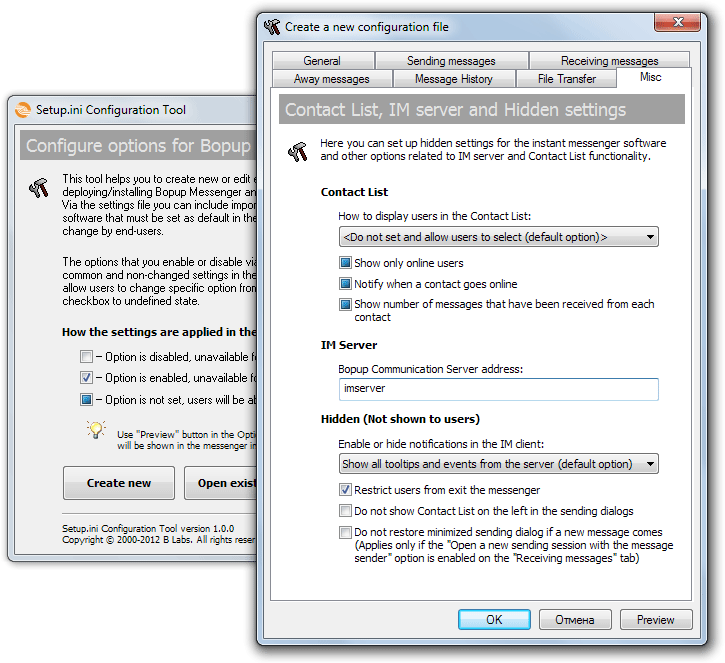
We are glad to inform our existing customers and new clients that we have released Setup.ini Configuration Tool that helps to easily and fast create new and edit existing setup.ini file.

As you know our IM client software, both Bopup Messenger and Bopup Observer clients can be installed and distributed with a set of pre-existing settings. In order to enable this the setup.ini must be placed into the same directory that contains installation package of the instant messenger. The main issue was that the setup.ini settings file includes a lot of options and it is a little difficult to learn which settings are for and to build a proper file by editing file's entry in a text editor.

To support our users we released Setup.ini Configuration Tool that is now available for download at http://www.bopup.com/files/setupcfg.exe This handy utility offers to set up all needed and required options via graphic interface that is similar to the Options window of the instant messenger software.


The options property dialog of the configuration tool looks like the Options dialog box in the Bopup Messenger client. So you can set and clear check boxes like you are working in the messenger. The most of the check boxes are 3-state and having checked, unchecked and undefined states. Each from these states applies the following in the end-user IM client software:
  • Checked — the option will be enabled and grayed out in the messenger client, users will not be able to change it
  • Unchecked — the option will be disabled and grayed out in the messenger client, users will not be able to change it
  • Undefined — the setting will not be included to setup.ini file that means that users will be able to change and modify it from the messengers
The configuration tool also provides a Preview function. It allows to quickly see how the settings will look in the instant messenger interface, i.e. which options will be enabled/disabled and which will be available for change to a user. To preview options click Preview button in the options property dialog.

March 5, 2012

Tips & Tricks: How to reinstall Bopup Communication Server

This post explains issues and describes how to reinstall Bopup Communication Server software on the same computer. Since the communication server uses a SQL server database and can be also installed with built-in MSDE 2000 package (Microsoft SQL Server Desktop Engine) then it is required to do some operations manually after uninstall of the IM server software and before installing it again.

Below is a step-by-step instruction that helps to reinstall Bopup Communication Server on the same machine. Please note that this guide is valid only if the IM server was installed with MSDE 2000 software:

Step-by-step instruction on reinstalling Bopup Communication Server using built-in MSDE 2000: 
  1. Uninstall Bopup Communication Server from "Add/Remove Programs" panel.
  2. Uninstall Microsoft SQL Server Desktop Engine from "Add/Remove Programs" panel.
  3. Go to "Program Files" directory and remove "Microsoft SQL Server" subfolder from there.
  4. Reboot the computer if needed or to ensure that no any existing data will remain.
  5. Start the setup package of Bopup Communication Server.
There some differences if the communication server uses existing Microsoft SQL Server that is running on the same computer or externally. In that case both "BCS40" database and "bcsadmin" user login must be removed from SQL server using management tools. The subsequent installation of Bopup Communication Server will create the database and SQL login again otherwise if that data remains on the SQL server this will cause errors.

Step-by-step instruction on reinstalling Bopup Communication Server using external SQL server:
  1. Uninstall Bopup Communication Server from "Add/Remove Programs" panel.
  2. Remove "BCS40" and "bcsadmin" login name from the SQL server.
  3. Reboot the computer if needed or to ensure that no any existing data will remain.
  4. Start the setup package of Bopup Communication Server.