December 20, 2010

Tips & Tricks: How to copy and move Bopup IM clients to another location with no setup

This article explains and answers to the question:

Are the instant messengers, both Bopup Messenger and Bopup Observer, portable IM software?

We agree that we did not explain and throw light on this question before. We forget to say that our client-side messengers are portable software so you can copy and move Bopup Messenger and Bopup Observer applications to another folder on a hard drive, shared network location, USB flash drive or move the software to another computer/workstation and get the messengers working with no any setup and configuration.

In order to do this you need to copy/move all the files/directories from installation folder of the instant messenger. First, find and locate the installation directory of the program.

By default Bopup Messenger has it's installation folder located at <DRIVE>\Program Files\Bopup Messenger and for Bopup Observer that folder can be found at <DRIVE>\Program Files\Bopup Observer

A list of files and directories in installation folder of Bopup Messenger:
Resources\ (folder)
Bopup.chm
bopup.exe
bopup.exe.manifest
Contacts.txt
CSClient.dll
CSClient.X.manifest
History.dll
History.X.manifest
IdleHook.dll
incoming.wav
Readme.txt
Resources
SecPrvdr.dll
SecPrvdr.X.manifest
Transfer.dll
Transfer.X.manifest
typedsnd.wav

Copy all entries of that directory or that folder in full to any other location on a local, remote computer or a flash drive. Run the executable file (bopup.exe or observer.exe) to launch the instant messaging application.

Please note that all settings and options stored in system registry and installed via the setup.ini file including downloaded branding logo will be lost if you move the messenger to another computer. If you just move the messenger to another folder on the same computer and run it under the same Windows user account then all the settings are saved and restored.


B Labs signs a partnership with Group of Companies «Arsenal +»

We glad to inform our Russian-market clients and customers that we start to sell and distribute through our new partner and distributor, Group of Companies «Arsenal +».


About «Arsenal +»

Based in Tyumen, Russian Federation «Arsenal +» is a leading provider of IT services and software for businesses in Ural area. The company provides and offers it's services since 1993 year.

Contacts
Lenina str, 15
Tyumen, Russia, 625003
Phone: +7 (3452) 79-70-70
Fax: +7 (3452) 79-70-50
E-mail: ars@arsplus.ru
www.arsplus.ru

December 19, 2010

Bopup Communication Server fixes connection errors and issues on IM client side

New version 3.3.22 of Bopup Communication Server has been released today. This release is a strongly recommended update for the IM server software because it fixes and resolves possible issues and errors that may occur in the instant messengers while establishing a connection with the communication server.

We received reports from our customers and noticed ourselves that sometimes the messaging client may display the "The IM server not found (#132)" error on it's startup even the communication server is running and accessible. If the IM server has the Windows Authentication (SSPI) enabled to authorize users then the "Login to the IM network" pane is shown in the messenger that forces the user to enter his logon credentials even he is logged into Windows Domain network on the computer.

This issue is related to a bug of Bopup Communication Server which can be working on initializing a new session for the client and is not able to handle a new request from the same messaging client. Then the messenger recognizes this situation as a connection error.

In order to avoid the situations and issues described above it is strongly required to upgrade your current version of Bopup Communication Server to the latest release. Download the version 3.3.22 from www.bopup.com/downloads and just run the new setup package to update an existing server software on the fly.

December 3, 2010

Guide on installing MS SQL Server 2005 has been updated and appended

Our Step-by-Step Guide to Install Microsoft SQL Server 2005 Express Edition as a Host Database Server for Bopup Communication Server that is available on our websites has been updated. This guide helps to install and setup MS SQL Server 2005 Express Edition on a computer in order to use it as a database server. Since MSDE 2000 software (shipped with the setup package of Bopup Communication Server) is not supported by latest versions of Windows then you cannot install and use it on Windows 2008/Vista/7 operational systems and higher. In order to run Bopup Communication Server on these systems you should install MS SQL Server 2005 Express Edition first.

This guide has been appended with information about SQL Server Browser service. This service, part of the SQL Server 2005, should be started if you plan to connect and manage the IM server remotely. It is also required if the communication server is installed on another computer, i.e. if both the SQL Server and Bopup Communication Server are running on different workstations.

Below is the information that has been added to the guide.


You need to configure a little SQL Server 2005 after it's installation will complete. You should enable TCP/IP protocol for it, start the SQL Server Browser service and add the SQL service to Windows Firewall exceptions list.

Start the SQL Server Configuration Manager from the "Start -> Programs -> Microsoft SQL Server 2005" menu. Then open the "SQL Server 2005 Network Configuration" and select the "Protocols" in the left tree. You must enable TCP/IP protocol and then start the SQL Server Browser service to allow connections from Bopup Communication Server to the SQL server and also to support remote connections to the database if you will install the Management Console of the communication server to administrate the IM server remotely. Select and right-click on the TCP/IP protocol in the list and select "Enable" item from the popup menu.

To start the SQL Server Browser service click the "SQL Server 2005 Services" in the left tree and double-click on SQL Server Browser, the Properties window will show up. Move to Service tab and change Start Mode to Automatic. Therefore, the service will be start automatically when the computer starts. Click OK to apply changes. Back to SQL Server Configuration Manager, right-click on SQL Server Browser on the right window and select "Start" to start the service.

Then restart the Microsoft SQL Server service from the console or reboot computer to apply changes.
 

Our guide on installing the SQL Server 2005 Express Edition is also valid and can be used for Microsoft SQL Server 2008. You can access the step-by-step guide at www.bopup.com/products/install_sql_server_2005_as_database_server.html

November 30, 2010

Bopup Communication Server adds a function to print a tree structure of Organizational Units and user accounts

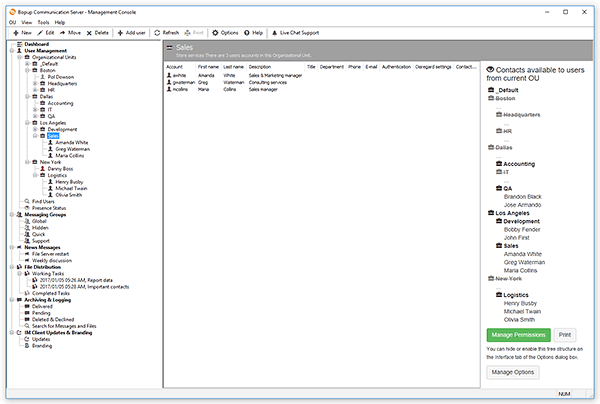
Today a new version of Bopup Communication Server has been released. Version 3.3.21 contains small improvements and adds printing support for a tree of Organizational Units and contacts that are available to currently selected OU. That tree structure can be displayed on the right from the users list if an Organizational Unit is selected in the Management Console.


Previous versions of the communication server did not show that tree structure by default. In order to enable it and get visible the appropriate option called "Display available contacts on the right in the Organizational Unit views" must be checked on the Interface tab in the Options dialog box. See the "Options. Interface settings" topic available in Online Help.

Download the latest version of Bopup Communication Server

November 26, 2010

Tips & Tricks: How to get users connected under different IM accounts if they have the same Windows logon name

We get a lot of requests and inquiries from our customers and clients that ask us regarding our software and its functions. Sometimes the customer explains his situation which he want to get resolved or avoided with Bopup instant messaging products. Since the products have rich functionality and options so it is possible to set up and tune the software in most cases. You can find some answered and solved requests here, in our blog, under the "Tips & Tricks" label.

How to get users connected under different IM accounts if they have the same Windows logon name

Sometimes users on the network enter to Windows under the same logon ID, for example "Administrator" account name. If you install and use the communications server you need to separate that users and give them different and unique names in order to contact them personally and to allow the users to communicate with others.

It is possible to do that. You should create new users on the communication server with different logon (account) names and set a personal authentication method for each user.

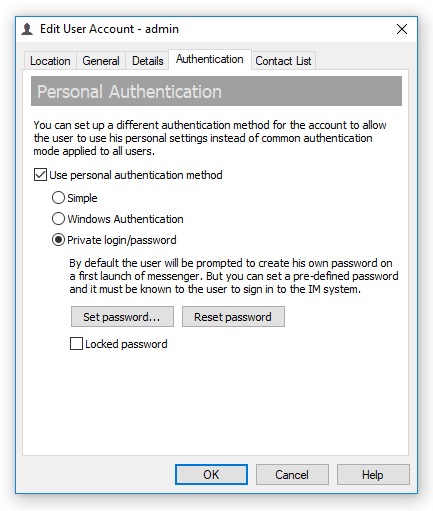
In addition to the global Authentication Mode that you can find in the Options window of the Management Console you can set up an authentication method for each account personally. Get the properties of the user account on the server and go to the Authentication tab. Then enable the “Use personal authentication method” check box and choose an appropriate mode to authorize the user.


Now let's return to our question and our situation. In order to accept connections from the same Windows logon ID, let's call it "Administrator", as different users on the communication server you should delete (or rename) the “administrator” account on the IM server and create new user accounts with any other names. Those accounts can have any names like user’s e-mail address or something else. And for each newly created account you should specify a personal authentication with the “Private login/password” mode (if the IM server uses Windows Authentication). When your users with the “Administrator” Windows logon ID will connect to the communication server then messengers will show the Login tab in their interface to allow the users to enter their private login and password to enter to the IM network.
By the way if you only disable the “administrator” user account on Bopup Communication Server then your users with such Windows logon name will not be able to proceed because the messenger will display an error message that the account is disabled on the server and the login interface will not be shown.

November 22, 2010

Added support for pre-defined settings in the IM client software

New versions of the have been released. Bopup Messenger version 5.5.2 and Bopup Observer version 4.3.16 add support for pre-installed options in the setup.ini file in addition to "common" settings.

The new versions of the now provide support for new options set with the "Pre_" prefix in the name that are located in the setup.ini configuration file. Those options can be used to set up pre-defined settings in the messenger software that can be changed by users in the future.

This gives more functionality on installing and tuning the IM client software because now not only "common" settings can be specified in the setup.ini file.

Download the new versions from www.bopup.com/downloads/ and do not forget to update your setup.ini file to use newly added options.

November 18, 2010

A really great review of Bopup Messenger on www.findmysoft.com

 "Thanks to the internet we can easily communicate with one another in real-time. This is mostly done via messenger applications, like Yahoo! Messenger or Windows Live Messenger. But what if you do not have access to the internet? What if all you have is a local network, with limited or restricted access to the internet? How do you communicate with others on the network in real-time?

Why you use the right piece of software of course. And the right piece of software in this situation is the B Labs Software-developed Bopup Messenger. This application, as its name so adequately points out, is a messenger. Unlike Yahoo! Messenger for example, it doesn’t need an internet connection; it works over the local network, making it a good choice for office environments where people need to communicate but don’t necessarily need access to the internet." 


Read a good written review of Bopup Messenger product at bopup-messenger.findmysoft.com/review/ 

November 15, 2010

Bopup Communication Server version 3.3.20 has been released

New version 3.3.20 of Bopup Communication Server is available to download at www.bopup.com/downloads/

What's New
  • Information on user's current/last session is shown under his account details on the profile page. 
  • User's account profile page contains the name of Organizational Unit and it's location (path) within parent units. 
  • This version gives another 30-day trial if it is installed above an existing version. 

About Bopup Communication Server

Bopup Communication Server is an instant messaging server for private IM, internal chat and secure collaboration over corporate and business networks. It provides Active Directory support and integration, message and file archiving, offline messaging and document distribution with a strong encryption of transmitted data. The server offers various authentication modes to accept user connections, manages user groups from a single place, supports and handles easy and very effective distribution of documents and important events from the IM server to employees and users.

Since the communication server is designed for business and enterprise-level environments it is intended to install and organize a private and internal chat system and real-time communication platform for companies with no outside access too. Bopup Communication Server is easy and fast to set up which takes about few minutes to get completed. It comes with embedded SQL server to host it's database or can be installed using an existing MS SQL Server software.

The communication server includes a built-in functionality to upgrade IM client software with uploading new versions of the messengers on the server. End-user messaging applications can be also distributed and deployed with pre-installed settings and options that reduces an overall time of software setup. And the IM client branding feature lets upload company's image, logotype on the communication server and show it in the messengers interface. It is highly important for companies and organizations that want to get their messaging software in a common corporate style.


More information is available on IM Server product page  

November 11, 2010

B Labs starts to distribute and sell it's IM software through Softline company

B Labs is proud to inform clients and customers from Russia and ex-USSR area that is now available for distribution and purchase through Softline company. And we have been also included to their Vendors catalog at soft.softline.ru/b-labs/


About Softline

Since it’s foundation in 1993, SoftLine has been consistently building it’s marketing strategy using direct-marketing approach. SoftLine-direct is the name that stands behind all our direct-marketing activities. Our vision of the software market implies utilization of the two major marketing cornerstones: qualitative information and qualitative database. With the personalized channels-based approach we reach most of the contemporary IT sector in Russia and CIS countries. And in all our communications, the ultimate goal remains bringing the most value to our customers. This enables us to keep our database clean and updated and measure the volume of marketing pressure we attribute to each market segment.
www.softline.ru

November 8, 2010

30% discounts are offered for Bopup IM software to medical and educational organizations

Do you know that we offer great discounts for our software products to non-profit organizations? Medical and educational institutions and organizations can receive 30% discount from a total cost of . Want to get a discount? Just contact us via any e-mail address you can see on our website, by phone, or via Live Help system.

We also have another great offer available to small-size companies and offices. We provide our server-side software, Bopup Communication Server, for free to those clients that are interested in a small number of instant messengers, i.e. the number of concurrent connections to . And if the number of purchased licenses for the IM client software is between 10 and 20 licenses then there is no need to buy Bopup Communication Server too — it comes FREE! This is -$219.00 US discount per a single purchase!

Please visit our pricing and order page to calculate the cost for your amount of licenses.

November 1, 2010

B Labs technical support and sales dept are available seven days a week

Do you know that our customer and technical support are available 7-days a week including holidays and celebrations? So you can contact us by US toll free phone 877-99-BOPUP (877-992-6787), via e-mails, through our feedback Web form at www.bopup.com/support  or via online messenger installed on our website every day a week from Monday to Sunday!

Have a question, issue or need our immediate assistance? No problem! Just get in touch us with the best way for you.